STEP 01
Know the mobile boundary
The Android app is a Capture Extension. It queues selected call/text metadata and notes for later desktop review; it does not manage cases, create invoices, handle subscriptions, or synchronize automatically.
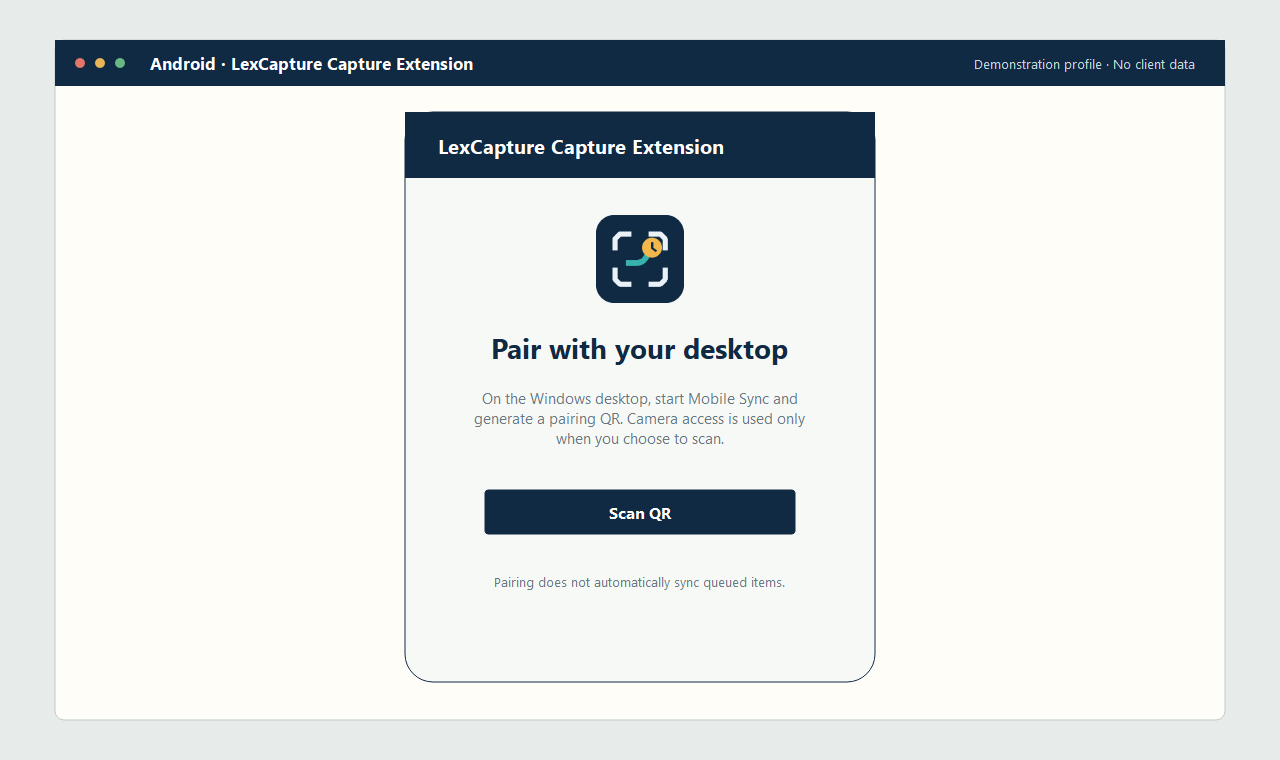
Android Capture Extension guide
This guide follows the real entitled desktop → protected installation QR → separate LAN pairing QR → user-initiated sync workflow. Use demonstration content before capturing real work.
The Android app is a Capture Extension. It queues selected call/text metadata and notes for later desktop review; it does not manage cases, create invoices, handle subscriptions, or synchronize automatically.
Open LexCapture on Windows, sign in, then choose Tools → Download / Update Mobile App. Scan the short-lived protected download QR with the Android phone and approve installation. Initial installation and every future mobile update begin inside the entitled desktop application; there is no public APK link.
Connect both devices to a trusted private network. In LexCapture choose Tools → Mobile Sync / Pairing, select the appropriate private Wi-Fi or Ethernet adapter, then choose Start LAN Receiver.
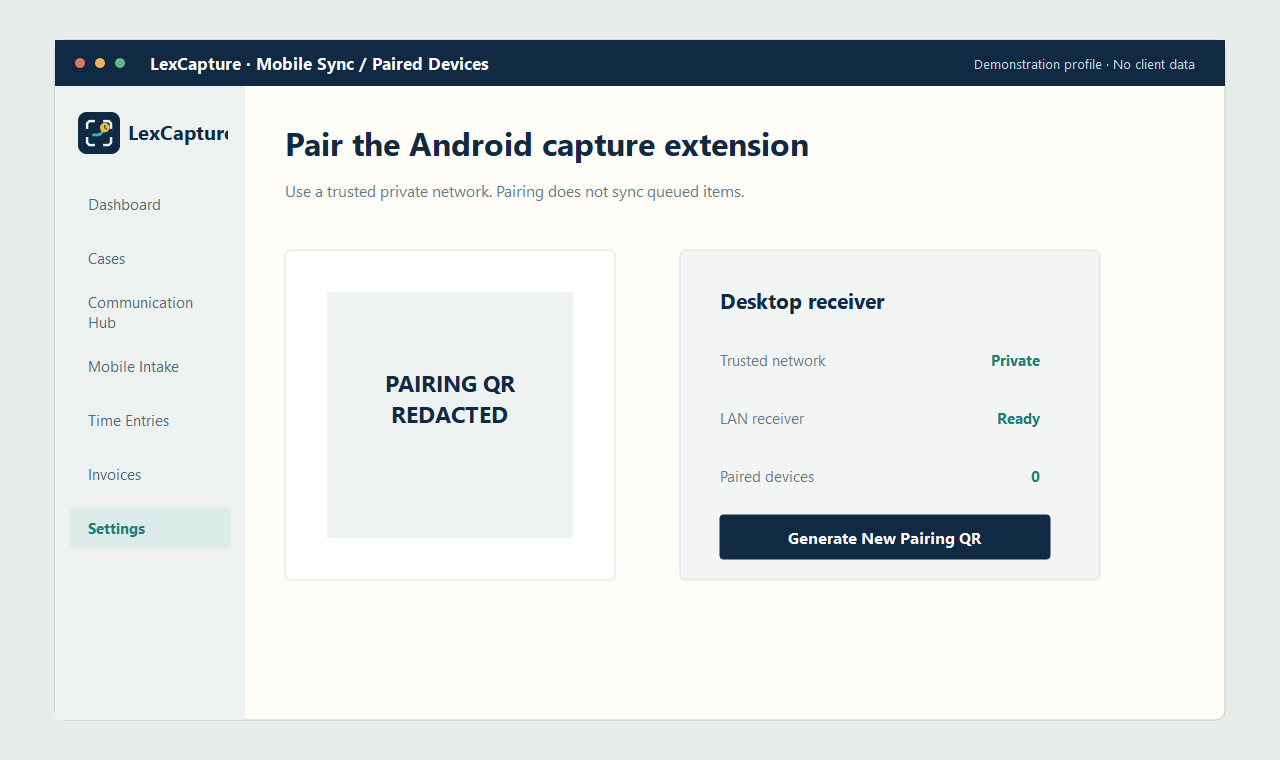
On the desktop choose Generate New Pairing QR. In the Android app choose Scan QR, allow camera access only for scanning, review the desktop and masked connection details, then confirm pairing.
Pairing saves the trusted connection but uploads nothing. Review the phone queue, keep both devices on the trusted network, and choose Sync Now only when you are ready.
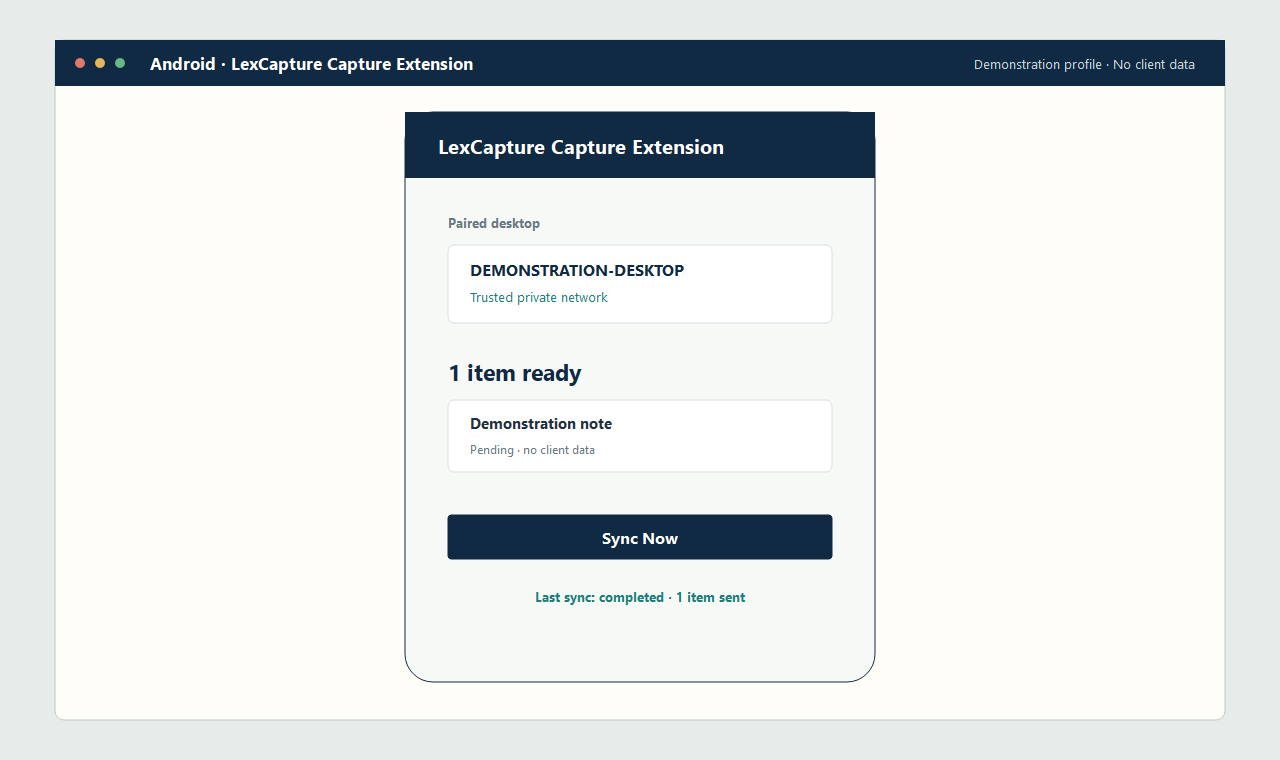
Return to Mobile Intake in LexCapture. Review synced items, then move approved metadata through Communication Hub for case assignment and optional explicit time creation. Stop the LAN receiver when you finish.
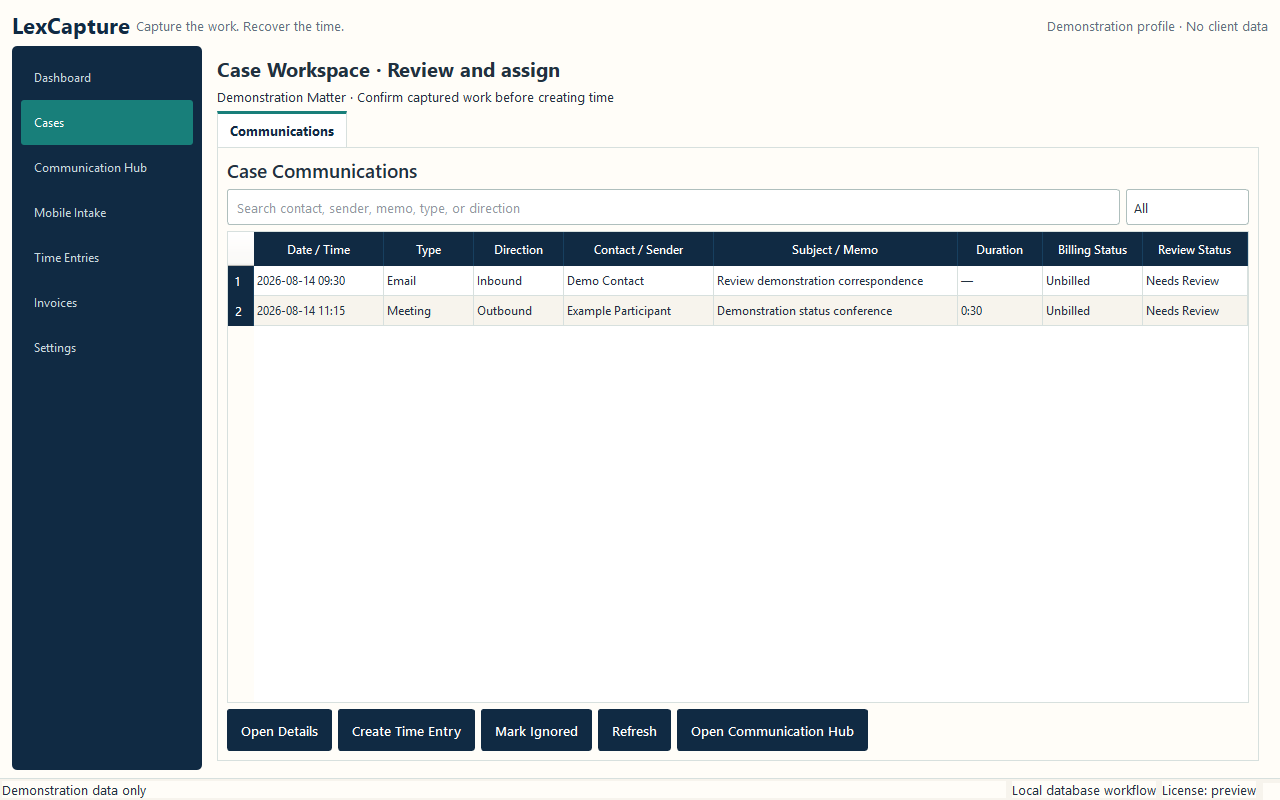
The desktop remains the Command Center. The website never exposes an APK, and Mobile cannot manage cases or billing. All synchronized items still require the existing provider, service, repository, local-database, and review workflow.